
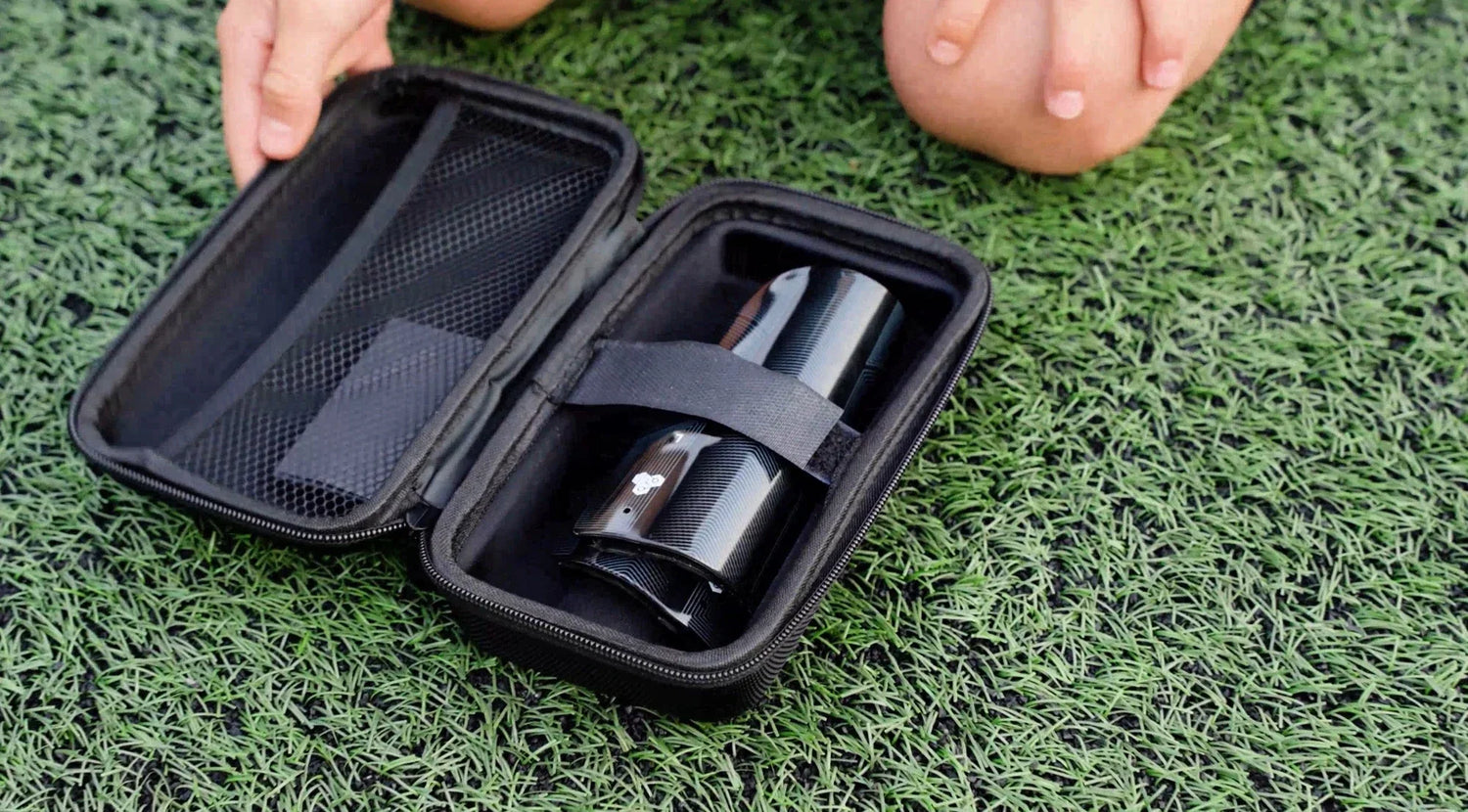
Knowing the battery level of your INSAIT JOY Smart Shin Guards or Smart soccer is essential for uninterrupted training and match analysis. Fortunately, you can easily access this information directly within the INSAIT JOY app.
This article outlines the simple, step-by-step process for checking the battery status for both of your INSAIT JOY devices.
Checking Battery Status for INSAIT JOY Smart Shin Guards
The soccer trackers embedded in your INSAIT JOY Smart Shin Guards require connection to the app for battery checks.
You can easily check the battery status through the INSAIT JOY mobile app with the following steps:
- Ensure Connection: Make sure your INSAIT JOY Smart Shin Guards (both trackers) are powered on.
- Open the App: Launch the INSAIT JOY App on your smartphone.
- Navigate to 'Me' Tab: Tap on the Me tab located in the bottom navigation bar.
- Select Device: Select My Smart Shin Guards from the menu options.
- View Battery: Tap on Device Info, and ensure your smart shin guards are successfully connected to the INSAIT JOY App via Bluetooth. You will see the remaining battery status for both your Left and Right trackers.
Low Battery Reminder: In addition to the app, the LED light on the soccer trackers will display a slow flickering red when the battery is running low. This serves as a quick visual reminder that it’s time for a recharge!
Checking Battery Status for INSAIT JOY Smart Soccer
Similarly, you can easily monitor the battery status of your INSAIT JOY Smart Socccer directly within the INSAIT JOY mobile app. This ensures you're always aware of your charge level and can plan your training sessions accordingly.
Follow these simple steps to check your battery status:
- Ensure Connection: First, make sure your INSAIT JOY Smart Soccer is powered on (you may need to bounce it a few times to wake it up) and successfully connected to the INSAIT JOY App via Bluetooth.
- Open the App: Launch the INSAIT JOY App on your smartphone.
- Navigate to 'Me' Tab: Tap on the Me tab located in the bottom navigation bar of the app.
- Switch Devices: You must first ensure the app is in Smart Soccer mode. If not, navigate to Me > Switch Devices to select your Smart Soccer.
- Select Device: Select My Smart Soccer from the menu options presented in the 'Me' section.
- View Device Info: Within the 'My Smart Soccer' screen, tap on Device Info. Here, you will see the remaining battery status for your smart soccer.
Need Further Assistance?
If you encounter any troubles using your product or checking the battery status, please use the following resources:
- Smart Shin Guards Support: Smart Shin Guards - Support & Troubleshooting Guide
- Smart Soccer Support: Smart Soccer- Support & Troubleshooting Guide
- Contact Support Team: Email our Support Team or fill out the Support Form, and a member of our team will be in touch with you soon.


Leave a comment
This site is protected by hCaptcha and the hCaptcha Privacy Policy and Terms of Service apply.