
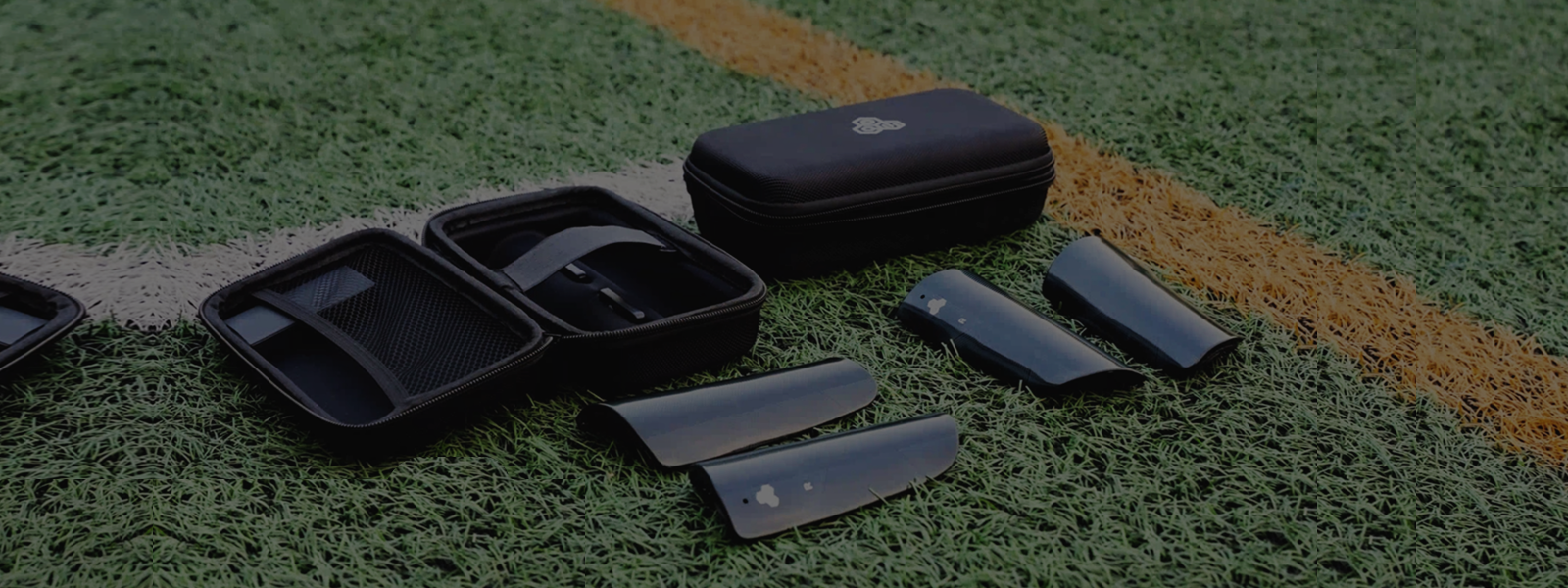
INSAIT KS SoccerTracking System Support & FAQs
Find out how to get started with your INSAIT KS Soccer Tracking System. Have a question? Discover expert advice and find out how to get in touch with Customer Support.
ON THIS PAGE
Use the corresponding "Jump-to-Section" buttons below to locate the support content topic you need.
GENERAL QUESTIONS
GETTING STARTED
START MEASUREMENT
TROUBLESHOOTING
MAINTENANCE TIPS
GENERAL QUESTIONS
Get to know more about INSAIT KS Soccer Tracking System
The INSAIT KS Soccer Tracking System has been specifically engineered and optimized for Soccer (soccer) at all team levels – from youth academies to professional clubs.This system is meticulously designed to capture the unique demands of Soccer, offering precise insights into:
- Player Physical Performance: Tracking metrics like distance covered, speed, acceleration, deceleration, and heart rate using lightweight wearable trackers.
- Tactical Analysis: Monitoring player positioning, formations, heatmaps, and active zones on the pitch.
- Technical Ball Data: Utilizing the INSAIT KS Smart Soccer, it provides highly accurate data on passes (completion, patterns), shots (accuracy), dribbles (speed), tackles, and interceptions.
While INSAIT KS's advanced UWB technology offers high-precision tracking that could potentially be adapted, its current features and analytics are tailored to the specific dynamics and metrics of soccer .
If you are a sports organization looking to explore the application of INSAIT KS for other sports, we invite you to get in touch with our sales team by email. We would be happy to discuss your specific needs and evaluate potential solutions.
Updated on 27 June 2025
Understanding the distinction between Global Positioning Systems (GPS) and Local Positioning Systems (LPS) is crucial for appreciating the precision and capabilities of advanced tracking technologies like INSAIT KS. The core difference lies in their operational infrastructure and resulting accuracy:
Global Positioning Systems (GPS)
- How it Works: GPS relies on signals from a constellation of satellites orbiting approximately 20,000 km (12,400 miles) above Earth. A receiver on the player's device calculates its position based on the time it takes to receive signals from multiple satellites.
- Strengths: Widely available and effective for tracking movements over large, open outdoor areas.
- Limitations: Due to the vast distance of satellites and their movement (around 14,000 km/hour), GPS can experience reduced positional accuracy, especially in environments with signal interference (like tall buildings, dense forests, or indoors where satellite signals are often unavailable or unreliable). This can lead to less precise data for rapid, intricate movements common in sports.
Local Positioning Systems (LPS)
- How it Works: LPS, such as INSAIT KS, does not rely on satellites. Instead, it operates using a locally deployed infrastructure of short-range signaling beacons (often called anchors). These anchors are strategically placed around the playing area, each with a precisely known location. The system then determines the position of player trackers (and the smart soccer, in the case of INSAIT KS) through triangulation techniques based on the time of flight of signals between the trackers and the anchors. INSAIT KS specifically leverages Ultra-Wideband (UWB) technology for this, known for its exceptional precision.
Advantages of LPS over GPS for Sports
- Superior Accuracy: Because the signaling beacons are much closer to the players and stationary, LPS can achieve significantly higher positional accuracy, often down to 10cm level, compared to typical GPS systems. This is critical for capturing the nuanced movements, sharp turns, and quick accelerations in soccer.
- Indoor & Outdoor Versatility: LPS systems are effective both indoors (e.g., futsal courts, training facilities) where GPS signals are blocked, and outdoors, ensuring consistent data collection regardless of the venue.
- High Sampling Rates: LPS typically offers higher data sampling rates (how often position data is recorded per second), providing a more granular and reliable picture of dynamic movements.
This localized, precise approach allows INSAIT KS to capture incredibly detailed and accurate player and ball movement data, providing coaches and analysts with deeper insights into performance.
For a more in-depth comparison, you can refer to our blog article that further explains the difference between INSAIT KS (a Local Positioning System) and traditional GPS trackers.
Updated on 27 June 2025
The INSAIT KS Soccer Tracking System offers an incredibly comprehensive suite of data, generally measuring and visualizing 272 parameters and variants. This extensive data set provides coaches, analysts, and players with a holistic and in-depth understanding of performance, physical conditioning, tactical execution, and player development.
The metrics are broadly categorized into the following key areas:
1. Internal Load Metrics
These metrics assess the physiological stress and response of an athlete's body to physical exertion, crucial for managing fatigue, preventing injury, and optimizing recovery. For example:
- Physical Load: A proprietary or calculated measure of overall physiological stress accumulated during a session.
- Heart Rate (HR) Zones: Time spent and effort within different heart rate intensity zones (e.g., aerobic, anaerobic thresholds), indicating cardiovascular demands.
- VO2 Max: Insights related to an athlete's maximal oxygen uptake capacity.
- Intensity: Overall measure of the physiological effort.
- Calorie Burn: Estimated energy expenditure during activity.
2. External Load Metrics
These quantify the objective physical work performed by an athlete, representing the mechanical stress placed on the body. For example:
- Distance Covered: Total distance run, often broken down by speed zones (e.g., walking, jogging, running, high-speed running, sprinting).
- High-Speed Runs (HSR) / Sprints: Number, duration, and distance covered at high or maximal speeds.
- High-Intensity Distances: Cumulative distance covered combining HSR and sprints.
- Speed Zones & Top Speed: Specific ranges of speed and the peak velocity achieved by a player.
- Accelerations/Decelerations: Number and intensity of explosive bursts and rapid changes in speed, critical for agility and game-specific movements.
- Turns & Turn Intensity: Number of directional changes and the intensity (sharpness) of those turns, indicating agility and evasive maneuvers.
3. Positional Data
Leveraging its precise UWB technology, INSAIT KS offers detailed spatial and tactical insights. For instance:
- Real-time & Average Formation: Visualization of team shape and player positioning throughout the game or drill, as well as average positions.
- Heat Maps: Visual representation of where players spend most of their time on the pitch, highlighting active zones.
- Active Zones: Specific areas of the pitch where players and the team exhibit significant activity.
4. Ball Data (via INSAIT KS Smart Soccer)
A unique strength of the INSAIT KS system is its ability to integrate with the smart soccer, providing unparalleled insights into technical interactions with the ball. This includes:
- Pass Completion: Success rate of passes, often broken down by pass type or recipient.
- Player Connection: Analysis of passing patterns and link-up play between teammates.
- Forward Passes: Tracking progression of the ball up the field.
- Shot Accuracy: Analysis of shots taken and success rates.
- Dribble Speed: Speed and efficiency of ball carrying.
- Ball Possession: Tracking time and periods of team or individual ball control.
5. Match Events (manual input & automated input)
Capturing key moments and custom-defined actions during a game or training session, such as:
- Goal Events: Automated tracking of goals scored or conceded and the corresponding event replay.
- Custom Match Events: Ability for coaches or analysts to tag and log specific in-game events relevant to their analysis (e.g., tackles, interceptions, fouls, turnovers).
By providing this comprehensive range of metrics, INSAIT KS empowers coaching staff to make data-driven decisions on training load management, tactical adjustments, injury prevention, and individual player development.
Updated on 27 June 2025
The INSAIT KS player tracking system is a comprehensive, professional-grade solution designed to provide highly accurate, real-time data on player and ball performance in Soccer. It integrates advanced Ultra-Wideband (UWB) and Inertial Measurement Unit (IMU) technologies across its various components to deliver unparalleled insights.
The system primarily consists of the following key hardware and accompanying elements:
Anchors (UWB Base Stations):
- Function: These are the foundational elements that create the local positioning network. The system requires 6 anchors, strategically placed around the pitch perimeter in a fixed sequence.
- Role: They transmit and receive UWB signals from the player trackers and the INSAIT KS Smart Soccer, allowing the system to accurately calculate their precise positions (down to 10cm accuracy) on the field using time-of-flight principles. One of these anchors serves as the Master Anchor, coordinating the network.
Antennas:
- Function: Six antennas, including a specific one for the Master Anchor, are installed on the anchors.
- Role: These are crucial for the efficient transmission and reception of UWB signals, ensuring robust and reliable communication within the tracking network.
Player Trackers (Wearables):
- Function: Compact, lightweight devices worn by players during training sessions and matches.
- Role: Each tracker contains both UWB communication modules for precise positional tracking (in conjunction with the anchors) and IMU (Inertial Measurement Unit) sensors. The IMU captures detailed movement data such as acceleration, deceleration, changes in direction, and jumps. Additionally, these trackers incorporate optical sensors for integrated heart rate measurements, providing critical internal load data without the need for separate chest straps.
INSAIT KS Smart Soccer:
- Function: A specialized soccerequipped with embedded sensors.
- Role: This smart Soccer integrates ultra-light UWB and IMU sensors within its core, without altering its natural roll and flight characteristics. It allows the system to detect and analyze specific ball events like passes, shots, ball possession, dribbles, and player interactions with the ball, all with centimeter-level accuracy.
Docking Stations:
- Function: Centralized units for managing and recharging the player trackers.
- Role: These stations provide a convenient and organized way to recharge multiple player trackers simultaneously.
Wireless Recharging Base:
- Function: A dedicated charging solution for the INSAIT KS Smart Soccer.
- Role: This base is specifically designed for inductive charging of the smart Soccer, ensuring it's always ready for use.
System Suitcases:
- Function: Durable and organized carrying cases for the entire INSAIT KS system.
- Role: These suitcases ensure the safe transport and storage of all components, making the system highly portable and easy to deploy across different venues.
Together, these components form a powerful ecosystem, capturing comprehensive, real-time data to empower coaches and analysts with deep insights into individual player performance, team tactics, and overall physical output.
Updated on 24 July 2025
While both featuring embedded sensor technology, the INSAIT KS Smart Soccer and INSAIT JOY Smart Soccer are designed for different purposes and utilize distinct technologies.
Key Differences Between INSAIT KS and INSAIT JOY Smart Soccer
- Primary Purpose: The INSAIT KS Smart Soccer is for team and tactical performance analysis, while the INSAIT JOY Smart Soccer is for individual skill and technical training.
- Key Technology: The INSAIT KS Smart Soccer uses both UWB and IMU sensors. The INSAIT JOY Smart Soccer uses IMU sensors only.
- Required Hardware: The INSAIT KS Smart Socceris part of a larger system (Anchors, Master Anchor, Trackers). The INSAIT JOY Smart Soccer is a standalone product.
- Data Captured: The INSAIT KS Smart Soccer provides ball trajectory and possession data. The INSAIT JOY Smart Soccer provides drill counts, frequency and fluency data.
- Primary Users: The INSAIT KS Smart Soccer is used by coaches and sports scientists. The INSAIT JOY Smart Soccer is used by individual players.
INSAIT KS Smart Soccer
- The INSAIT KS Smart Soccer is a professional-grade training tool. It features ultra-light UWB (Ultra-Wideband) and IMU (Internal Measurement Unit) sensors that allow it to communicate with the INSAIT KS system's hardware (anchors, master anchor, and player trackers).
- This sophisticated setup is designed to provide coaches with precise ball trajectory, passing, shooting, possession, and other critical tactical data for team analysis during live games and training sessions.
- It is an integral component of the INSAIT KS system and cannot be used as a standalone product.
INSAIT JOY Smart Soccer
- This is an individual training tool for players looking to improve their technical skills.
- It uses IMU technology only and does not rely on UWB or other system components.
- This makes it a standalone product that connects directly to the INSAIT JOY app via Bluetooth.
- The app's pre-designed drills and real-time feedback focus on helping players develop specific skills like ball control and dribbling.
Can I use the INSAIT JOY Smart Soccer in the INSAIT KS system?
No, the two smart soccer are not interchangeable. The INSAIT JOY Smart Soccer lacks the UWB technology required to connect and communicate with the INSAIT KS system's hardware.
Updated on 1 August 2025
The INSAIT KS Software Suite provides a powerful and intuitive platform that allows coaches, analysts, and support staff to manage the INSAIT KS system, collect real-time data, and conduct in-depth post-session analysis. The suite is designed to offer a seamless workflow, both on and off the field, and consists of two primary components: the INSAIT KS App and the INSAIT KS Web portal.
1. INSAIT KS App (iPad Only): Your Real-Time Operational Hub
- Platform: Exclusively designed for iPad. This choice ensures portability, a user-friendly touch interface, and robust performance for on-field operations.
- Core Function: The INSAIT KS App serves as your real-time command and control center during training sessions and matches.
Key Capabilities:
- Connectivity: The app connects directly to the INSAIT KS hardware system in real-time, providing immediate access to live performance insights.
- System Management & Control: Initiate, pause, and stop sessions; manage and monitor system components like anchors and player trackers.
- Live Session Data Display: View real-time metrics and visualizations of player and ball movements as they happen on the field, empowering immediate decision-making.
- Session Replay: Instantly review segments of ongoing or recently concluded sessions with integrated data overlays.
- Session Reports (Basic Access): Quick access to essential session summaries and analytical tools.
2. INSAIT KS Web (Web Portal): Your Centralized Analytics & Administration Platform
- Platform: A web-based portal, accessible from any web browser on a computer (desktop or laptop).
- Core Function: The INSAIT KS Web acts as the centralized database, analytical engine, and administrative hub for all your collected data.
Key Capabilities:
- Accessibility: Provides convenient access to your data and administrative tools from any location with an internet connection, facilitating in-depth analysis away from the pitch.
- Comprehensive Database Management: Securely store, organize, and manage all historical session data.
- Team and Player Management: Effectively manage your roster, player profiles, and team structures before and after measurement sessions.
- In-Depth Historical Data Analysis: Access and analyze past performance data, allowing for longitudinal studies and comparison over time.
- Trend Analysis: Identify performance trends, player progression, and areas for improvement over days, weeks, or seasons.
- Advanced Report Generation: Download various analytical reports in multiple formats (e.g., PDF, XLS, custom reports) for detailed post-session review, sharing, and presentations.
Together, the INSAIT KS App provides the essential real-time operational control and live insights during sessions, while the INSAIT KS Web portal offers the powerful tools for comprehensive historical analysis, data management, and strategic planning, creating a complete performance tracking ecosystem.
Updated on 24 July 2025
GETTING STARTED
Basic recharging and controlling procedures of the INSAIT KS system
To ensure optimal performance and a seamless experience with your INSAIT KS player tracking system, it's essential that your iPad meets the following minimum and recommended specifications. Please note that the iPad itself is not included in the INSAIT KS system package.
Minimum System Requirements:
- Operating System: Your iPad must be running iOS 13 or above. We always recommend keeping your iPad's operating system updated to the latest available version for best compatibility, security, and performance.
- Screen Size: The minimum supported screen size is 9.7 inches. This ensures that the app's interface and data visualizations are adequately displayed.
Recommended Specifications for Optimal User Experience:
- Screen Size: For the best clarity and ease of use when managing sessions, viewing live metrics, and analyzing data, we highly recommend using an iPad with a 10.2-inch or 11-inch screen size. These larger displays provide more space for detailed insights and interaction.
Connectivity (Highly Recommended): Cellular with SIM Card
While Wi-Fi is generally supported, we highly recommend using an iPad model with cellular capabilities and an active SIM card.
Why Cellular is Recommended: This ensures a reliable and continuous internet connection for optimal data upload to the cloud and download of system updates. In a field environment, Wi-Fi can be unreliable or unavailable, making cellular data crucial for:
- Seamless synchronization of session data to the cloud.
- Receiving remote support or updates.
- Maintaining connectivity even when a stable Wi-Fi network is not present on the training ground.
Meeting these requirements will enable you to leverage the full power and functionality of the INSAIT KS App for your team's performance analysis.
Updated on 24 July 2025
Your INSAIT KS system suitcase is equipped with a secure combination lock to protect your valuable equipment. Both opening the lock and resetting its combination are straightforward processes.
Part 1: How to Open the System Suitcase Lock
When you first receive your INSAIT KS system suitcase, the lock is typically set to the default combination of 0-0-0.
Steps to Open:
- Set the Combination: Rotate the dials to align with the current combination (e.g., 0-0-0 for the first-time opening).
- Locate the Release Mechanism: On most suitcase locks, there is a small lever that needs to be actuated. You will need to slightly lift the bottom part of the lock.
- Unlock: While holding the release mechanism, push it upwards. The lock should release, allowing you to open the suitcase.
Part 2: How to Reset the Combination of the Lock
Resetting your combination allows you to personalize your lock for enhanced security.
- Open the Lock: First, ensure the lock is in the open position using its current (or default 0-0-0) combination.
- Locate the Reset Mechanism: Look at the back of the combination lock for a small reset paddle.
- Activate Reset Mode: Push the paddle upwards to the 'SET' position.
- Set Your New Combination: While the reset mechanism is activated, rotate the dials to your desired new 3-digit combination. Choose a memorable number that is difficult for others to guess.
- Deactivate Reset Mode: Push the paddle downwards to the 'OFF' position.
- Test the New Combination: Scramble the dials away from your new combination. Then, enter your new combination and try to open the lock. If it opens, your new combination is successfully set!
IMPORTANT: Immediately make a note of your new combination in a secure place.
For Detailed Visual Instructions: While these steps are common for most suitcase combination locks, detailed instructions can be found in the support documents provided with your INSAIT KS system or directly from our authorized distributors. If you encounter any difficulties, please refer to these documents or contact our support team.
Updated on 24 July 2025
Proper recharging of your INSAIT KS Master Anchor and standard Anchors is essential to ensure they are ready for every session and to maintain optimal system performance.
Charging Process:
- Connect the Power: Using only the provided power adapters and DC charging cables, connect them securely to the designated charging port on each Anchor and the Master Anchor.
- Verify Connection: Ensure the cables are firmly plugged into both the anchor units and a functioning power outlet.
Understanding the Charging Indicator Lights:
Once connected, observe the LED indicator light on the Anchor or Master Anchor to determine its charging status:
- Flickering Red Light: This indicates that the Anchor or Master Anchor is currently recharging.
- Constant Red Light: A solid red light signifies that the recharging process is completed, and the unit is fully charged.
Important Notes on Battery & Usage:
- It takes approximately 4 hours to fully recharge a Master Anchor or an Anchor from a depleted state.
- A fully recharged Master Anchor is designed to provide power for approximately 7 hours of operation.
- A fully recharged Anchor is designed to last for approximately 13 hours of operation.
- Environmental Impact on Battery Life: Please note that the actual operating duration may vary due to environmental conditions, most notably temperature. Extreme cold or heat can affect the battery's performance and shorten its effective life.
- Best Practice: To ensure maximum readiness and uninterrupted sessions, we highly recommend fully recharging all Anchors and the Master Anchor before each extensive use or training day.
Updated on 24 July 2025
Controlling your INSAIT KS Master Anchor and standard Anchors is straightforward, primarily involving powering them on/off and checking their operational status to ensure your system is functioning correctly.
1. Powering On and Off Your Anchors
To Turn On:
- Locate the Power button on your Anchor or Master Anchor. Press the Power button. The device will power on, and you should see a constant green light illuminated, indicating it is actively receiving power and operational.
To Turn Off:
- With the device powered on, simply press the Power button again. The green indicator light should turn off, signifying that the Anchor or Master Anchor has shut down.
2. Checking Hardware Status on the Screen
Each Anchor (including the Master Anchor) is equipped with a small display to provide immediate feedback on its operational status.
How to Check Status:
- Press the Function button located on the device. Upon pressing, the device's screen will display critical hardware status information.
Information You Can See:
The display provides insights into the anchor's current state, which includes:
- Anchor Sequence Number: Identifies the anchor's position in the network, typically from A to F, with 'A' indicating the Master Anchor.
- Battery Level: An indication of the remaining battery charge.
- UWB Status: Shows whether the Ultra-Wideband (UWB) module of the system is ready for tracking or in an error state.
- Server Status: Indicates whether the system's server is ready or in an error state.
- Wi-Fi Status: Displays whether the dedicated INSAIT Wi-Fi network for the system is ready or in an error state.
Regularly checking the status ensures your anchors are healthy and properly integrated into the INSAIT KS tracking network before and during your sessions. If any status indicators or displayed information suggest an issue, refer to your INSAIT KS User Manual for detailed troubleshooting, or contact customer support for assistance.
Updated on 24 July 2025
Properly recharging your INSAIT KS Player Trackers is vital to ensure they are fully powered for every training session and match, providing continuous and accurate data. The process involves using the dedicated Docking Station.
Step-by-Step Recharging Process
Step 1. Prepare the Docking Station:
- Connect the provided power adapter and DC cable to the INSAIT KS Docking Stations.
- Plug the adapter into a reliable power outlet.
- Confirm that the red-light indicator on the Docking Station is illuminated, signifying it is powered on and ready to charge.
Step 2. Insert the Player Trackers:
- Carefully insert each player tracker into an available slot on the Docking Station.
- Crucial for Proper Contact: Ensure the metal charging plates on the tracker are facing downwards and that the tracker is seated securely into the corresponding notch in the correct direction. A slight click or snug fit will confirm proper placement.
Understanding the Indicator Lights
Once properly inserted, observe the LED lights on the individual trackers to monitor their charging status:
- Purple Light: Indicates that the player tracker is currently recharging.
- Constant Red Light: Signifies that the player tracker is fully recharged and ready for use.
- Flickering Light: This is a low battery indicator, signaling that the tracker needs to be recharged soon.
Important Notes on Battery & Usage
- Full Charging Time: It takes approximately 2 hours to fully recharge a player tracker from a depleted state.
- Operating Duration: A fully recharged player tracker typically provides power for around 8 hours of continuous operation.
- Environmental Variation: Please note that the actual operating duration may vary due to environmental conditions, primarily temperature. Extreme cold or heat can affect the battery's performance and shorten its effective life during use.
- Best Practice: For optimal performance and to avoid interruptions during sessions, always ensure your player trackers are fully charged before each use.
Updated on 24 July 2025
Managing your INSAIT KS Player Trackers is straightforward, involving simple button presses to power them on, check their status, and understand their operational state through visual indicators.
1. Powering On and Off Your Trackers
To Turn On:
- Locate the physical Button on the player tracker.
- Press and hold the Button for approximately 3 seconds. The tracker will power on.
To Turn Off (Automatic):
- The INSAIT KS Player Trackers are designed for efficiency. They will automatically turn off if they remain stationary (stay still) for 10 minutes to conserve battery life. This is a smart power-saving feature.
2. Checking Hardware Information and Status on the Tracker Screen
Player trackers are equipped with a small screen to provide essential information directly on the device.
Checking Player Info / Tracker ID:
- If the tracker is currently displaying player information (e.g., during a session), a single, short tap on the Button will switch the display to the Tracker ID screen.
- Tracker ID Format: The ID will typically appear in the format "K xx", where "xx" represents a unique two-digit number for that tracker.
Accessing Detailed Tracker Info:
- While the Tracker ID screen is displayed, a long tap on the Button will cycle through additional detailed tracker information screens (e.g., Pan ID, firmware version).
- To switch between these detailed info screens, simply short tap the Button.
- To return to the Tracker ID screen from any detailed info screen, perform another long tap on the Button.
3. Understanding Tracker Indicator Lights
The LED light on the tracker provides quick visual cues about its status:
- Fast Flickering Red Light: Indicates that the tracker's battery is low and needs to be recharged soon.
- Slow Flickering Green Light: Signifies that the tracker is powered on but is currently not assigned to a player within the system. This light will change once the tracker is successfully assigned.
Regularly monitoring these indicators and checking the on-screen information will help ensure your trackers are ready and correctly configured for every session.
Updated on 24 July 2025
Recharging your INSAIT KS Smart Soccer using its wireless charging base is a straightforward process, crucial for ensuring your ball is always ready for peak performance.
Step-by-Step Recharging Process
Step 1: Prepare the Wireless Recharging Base
- Connect the provided power adapter and USB cable to the INSAIT KS Wireless Recharging Base.
- Plug the adapter into a reliable power outlet.
- Observe the indicator light on the base: it will flicker for a few seconds and then turn to a constant red light. This indicates the base is powered on and ready to receive the smart soccer.
Step 2: Place the INSAIT KS Smart Soccer:
- Carefully place the INSAIT KS Smart Soccer onto the center of the charging base.
- Crucial for Proper Charging: Ensure the "lightening mark" (charging indicator) on the ball is facing directly towards the center of the base. This alignment is essential for efficient wireless power transfer.
Understanding the Indicator Lights on the Base
Once the ball is correctly placed, the indicator light on the Wireless Recharging Base will change to reflect the charging status:
- Constant Blue Light: Indicates that the INSAIT KS Smart Soccer is actively recharging.
- Constant Red Light: Signifies that the recharging process is completed, and the smart soccer is fully charged.
Important Notes & Best Practices for Wireless Charging
- Charging Time: It takes approximately 1.5 hours to fully recharge an INSAIT KS Smart Soccer from a depleted state.
- Operating Duration: A fully recharged smart soccer typically provides power for around 3.5 hours of continuous use.
- Avoid Interference: To ensure the Wireless Recharging Base works properly and efficiently, DO NOT place it in a strong magnetic field or near metal objects (like coins, keys, or large metal tables). Metal can interfere with the inductive charging process and may prevent the ball from charging or trigger safety mechanisms. If you are recharging several smart soccer simultaneously, ensure there is a minimum distance of over 30 centimeters (approx. 12 inches) between each Wireless Recharging Base to prevent signal interference between them.
- Environmental Factors: The actual operating duration of the smart soccer battery may vary due to environmental conditions, most notably temperature. Extreme temperatures can affect battery performance.
- Optimal Performance: For best results and uninterrupted sessions, always ensure your INSAIT KS Smart soccer is fully charged before each use.
Updated on 24 July 2025
The INSAIT KS Smart Soccer is designed for quick and intuitive activation, allowing you to power on its internal sensors and begin tracking your performance with ease. The activation method helps conserve battery when the ball is not in active use.
Steps to Activate Your INSAIT KS Smart Soccer
- Gently throw the INSAIT KS Smart Soccer up into the air. As you throw it, ensure the ball is spinning (rotating on its axis) as it ascends.
- Allow the ball to fall and land on the ground.
- Confirm Activation (Repeat if Necessary): For reliable activation, you may need to repeat Step 1 for 2-3 times. This ensures the internal sensors properly detect the specific motion required to power on.
Once activated, the ball's internal sensors will begin working, and it will be ready to connect with your INSAIT KS system.
Automatic Deactivation for Battery Saving
To conserve battery life, your INSAIT KS Smart Soccer is designed to automatically turn off if it remains completely still for 2 minutes. This smart feature prevents unnecessary battery drain when the ball is not in active use.
Important Note for Battery Longevity
To maximize battery life and avoid accidentally activating the ball when it's not needed, please refrain from frequently moving or spinning the ball while it is not in use. This practice helps ensure the ball is always ready for your training sessions when you need it.
Updated on 24 July 2025
START MEASUREMENT
Hardware and software settings for your first INSAIT KS measurement
The INSAIT KS Web portal serves as your centralized hub for comprehensive team and player management. This crucial step organizes your data, ensures accurate player identification, and streamlines your pre-session setup for seamless data collection and analysis.
Part 1: Creating and Managing Teams
Step 1. Log In to the Web Portal:
- Access the INSAIT KS Web Portal via your web browser.
- Log in using your credentials.
- Select your country or a country within your region to tailor system settings and data privacy regulations.
Step 2. Navigate to Team Management:
- From the main dashboard, go to the 'Teams' section.
Step 3. Add a New Team:
- Click on the 'Add a Team' option to initiate the creation of a new team profile.
- Select a Speed Threshold: During team creation, you will be prompted to select a Speed Threshold for the team. This is a critical setting for performance analytics, as it defines the speed categories (e.g., high-speed running, sprinting) that will be used to analyze player movements for this specific team. The thresholds ensure consistent data categorization across the team's sessions.
- Enter Team Information: Fill in all required team details, such as team name, or any other relevant information.
- Edit Team Information and Settings: At any time, you can return to the 'Teams' section to 'Edit' existing team information or adjust settings, including the speed threshold.
Part 2: Adding and Managing Players within Teams
After creating your teams, you can populate them with players using flexible methods:
Option 1. Bulk Import Players (Recommended for Multiple Players):
- Go to the specific team you wish to add players to. Select the 'Player' tab.
- Click on 'Add' and then choose 'Bulk Import'. This option allows you to download a Player Info Sheet (a template in Excel format).
- Fill in the Player Info Sheet: Carefully complete the sheet with all player details as instructed (e.g., name, jersey number, position, date of birth). Ensure accuracy to prevent data errors.
- Upload the Sheet: Follow the on-screen instructions to upload the completed Player Info Sheet back into the portal. This will efficiently add multiple players to your selected team.
Option 2. Individual Player Management Options:
Alternatively, from the 'Players' section within a team or from a global 'Players' tab in the portal, you can:
- Add New Player (One-by-one): Create a player profile individually if you only need to add a few players or if bulk import is not preferred.
- Add from Database: If you have a centralized player database within the system (e.g., from previous seasons or other teams), you can add existing players from there.
- Edit Player Settings: Modify individual player information, details, or specific settings as needed.
Part 3: Synchronizing Data with the INSAIT KS App (iPad)
- Enable Auto-Sync: Once you have created your teams and added your players in the INSAIT KS Web portal, it is crucial to connect your iPad to the internet. This will enable the automatic synchronization of all your updated team and player information with the INSAIT KS app on your iPad.
- Importance of Sync: This synchronization ensures that the app on the field has the most current roster and team settings, preventing discrepancies and allowing for correct player assignment to trackers before each session. It's recommended to perform this sync before heading to the training ground or match venue.
Updated on 24 July 2025
Proper installation of your INSAIT KS Master Anchor and Anchors, along with their antennas, is crucial for establishing an accurate and reliable tracking network. Follow these steps carefully to ensure optimal system performance.
Step-by-Step Anchor and Antenna Installation
Step 1. Prepare the Anchor Stand:
- Locate the foldable stand for the anchor (either an anchor or the Master Anchor).
- Press the buckle downward on the stand.
- Slightly lift the stand upward until it locks securely into place, ensuring it is fully fixed and stable on the ground.
Step 2. Prepare the Anchor/Master Anchor Unit:
- Identify the top of the Anchor or Master Anchor unit.
- Open the buckle located on the top of the unit, which will expose the antenna insertion hole.
Step 3. Insert the Antenna (Crucial Step):
- Carefully pick up the correct antenna. For the Master Anchor, please use the Master Anchor Antenna, which is distinguished by a green Receiver on its top.
- Gently insert the antenna into the hole on top of the Anchor/Master Anchor. Ensure the mark on the Antenna is precisely matching with the corresponding mark on the Anchor or Master Anchor unit. This alignment is critical for proper connection and signal performance.
Step 4. Secure the Antenna:
- Once the antenna is fully inserted and the marks are aligned, ensure it feels firmly fixed in the hole.
- Then, close the buckle on top of the Anchor/Master Anchor unit to lock the antenna securely in place.
Step 5. Optimize Antenna and Stand Height:
- Extend the Antenna to its maximum height. This typically involves pulling the telescopic sections upwards.
- If the anchor stand is adjustable, extend the stand of the anchor/master anchor to its maximum recommended height as well. Maximizing the height of both the antenna and the stand improves line-of-sight and signal quality for the UWB tracking.
Important Notes for Optimal Performance
- Stable Placement: Always ensure the anchor stands are placed on a flat, stable surface to prevent tipping and maintain consistent tracking.
- Clear Line-of-Sight: Position anchors in locations that offer a clear line-of-sight to each other and the playing area, minimizing obstructions that could interfere with the UWB signals.
- Detailed Guidance: For visual guidance and more comprehensive procedures, refer to the INSAIT KS tutorial videos and detailed user manuals, as provided by us or our authorized distributors.
Updated on 24 July 2025
Proper preparation of your INSAIT KS Player Trackers is crucial for capturing accurate data and ensuring a smooth workflow during your training sessions or matches. Follow these steps to get your trackers ready:
Step 1: Power On All Necessary Trackers
- Turn on each individual player tracker.
- Recommendation: We strongly advise that you turn on a quantity of trackers that matches the total number of players expected for your session, including all substitutes. This ensures that every participant who might enter the tracking area has a ready device, preventing delays during the session.
Step 2: Correctly Place Trackers into Armbands
- Carefully insert each activated player tracker into its designated armband.
- Crucial for Accurate Heart Rate Data: Ensure the tracker is oriented correctly within the armband. The light from the optical Heart Rate (HR) modules on the tracker must be facing downwards and go through the designated hole or transparent window on the inner side of the armband. This ensures the sensor has direct contact with the player's skin for accurate heart rate monitoring.
Important Recommendation for Session Setup
- Pair Before Distribution: We highly recommend that you DO NOT distribute the trackers to your players until you have successfully paired and assigned ALL trackers to their respective players within the INSAIT KS app.
- Why this is vital: Following this order streamlines your pre-session setup, prevents confusion or incorrect data attribution (ensuring each player's data is correctly linked to their profile), and allows you to confirm that all trackers are operational and ready before players begin their activity.
By following these preparation steps, you'll ensure that your INSAIT KS Player Trackers are optimally configured for accurate data collection throughout your session.
Updated on 24 July 2025
Precise pitch setup and correct placement of your INSAIT KS Master Anchor and Anchors are fundamental steps for ensuring the accuracy and reliability of your tracking data. These actions establish the precise spatial reference for the entire system.
Part 1: Preparing Your Pitch (Measurements)
Before deploying any hardware, accurate measurement of your playing area is crucial.
Obtain Precise Pitch Measurements:
- Measure the exact width of the pitch.
- Measure the exact length of the pitch.
- Measure the exact width of the goals.
- Crucial for Data Quality: Double-check that the goals are placed in their correct standard positions.
App Integration:
- This information will be entered into the INSAIT KS app later during pitch setup, and you will have the option to save these measurements as a profile for that specific pitch for future use.
- Importance: These precise pitch dimensions are vital for the INSAIT KS system to accurately map player and ball movements. Any inaccuracies here will directly impact the quality and validity of your tracking data.
Part 2: Setting Up and Placing Your Anchors with Antennas
Once your pitch measurements are confirmed, proceed with anchor deployment. Ensure your anchors are already turned on and their antennas installed as per previous instructions.
1. Strategic Anchor Placement - Sequence and Position:
Place your Master Anchor and standard Anchors around the pitch perimeter in a specific sequence, which is critical for the UWB network's functionality:
- Master Anchor (A): Place this anchor at the center line of the pitch, typically on one side.
- Anchor B: Position Anchor B on the opposite side of the pitch's center line, directly across from the Master Anchor (A).
- Anchors C, D, E, F: Place these four anchors at the four corners of the pitch following the correct sequence as provided in your user manual.
- Identification: The specific letter (A-F) for each anchor is typically marked on its antenna and also displayed on the anchor's screen. The Master Anchor is always designated as 'A'.
2. Determining Anchor Offset (Distance from Sidelines):
The Master Anchor and all standard Anchors should be placed with a consistent distance away from the actual pitch sidelines. This is known as the Anchor Offset. This offset serves two main purposes:
- To avoid collision with players or equipment during the session.
- To maximize signal coverage and provide optimal tracking accuracy, especially for players near the edges of the playing area.
Offset X and Y:
- Offset X refers to the horizontal distance from the pitch sideline.
- Offset Y refers to the vertical distance from the pitch endline (goal line).
- Recommendation: A recommended Anchor Offset for both X and Y is 2 meters (2m).
- Adjustability & Precision: You may adjust this offset value depending on the actual conditions of your pitch (e.g., available space, specific field dimensions). However, it is absolutely crucial that the Offset X and Y values you use are entered precisely into the INSAIT KS app while you are creating or setting up the pitch profile. Inaccuracy here will directly affect positioning data.
Part 3: Finalizing Pitch Setup in the INSAIT KS App
After physically placing all anchors and measuring your pitch and offsets, you must accurately input these values into the INSAIT KS app when you configure or select the pitch for your session. This digital representation in the app allows the system to correctly interpret the UWB signals from the physical setup.
Detailed placement diagrams and step-by-step instructions can be found in the INSAIT KS tutorial videos and your user manuals, as provided by us or our authorized distributors.
Updated on 24 July 2025
Connecting your iPad to the INSAIT KS system's dedicated Wi-Fi network is essential for real-time control, monitoring, and data transfer during your sessions. This connection ensures your iPad can communicate directly with the Master Anchor and other system components.
Part 1: Standard Wi-Fi Connection
- Access Wi-Fi Settings on Your iPad: Go to your iPad's 'Settings' app. Tap on 'Wi-Fi'.
- Select the INSAIT KS Network: In the list of available Wi-Fi networks, locate and select the network named "INSAIT". (Note: The network name may be different if otherwise instructed by your provider or system administrator).
- Enter the Password: When prompted, enter the default password:
MotionIQinsait. (Again, use the password provided if it has been customized). - Tap 'Join' or 'Connect'.
Part 2: Manual IP Configuration (For First-Time Connection or Connection Issues)
If this is your first time connecting this specific iPad to the system's Wi-Fi, or if you encounter any difficulties connecting, you may need to manually configure the iPad's IP address. This ensures it communicates correctly within the system's private network.
- Navigate to Wi-Fi Network Details: Connect to the "INSAIT" Wi-Fi network (even if it shows "No Internet Connection"). Tap the blue "i" icon next to the "INSAIT" Wi-Fi network name.
- Configure IP Manually: On the network details screen, tap on 'Configure IP'. Select 'Manual'.
- Enter IP Address: Enter 192.168.1.X. For 'X', select a unique number between 120 and 253. For example, 192.168.1.120, 192.168.1.121, etc. Ensure no other device on the INSAIT KS network is using the same 'X' value.
- Enter Subnet Mask: Enter 255.255.255.0. You can leave the 'Router' (Gateway) and 'DNS' fields blank or set to automatic, as the system's internal network doesn't require these for direct communication with the anchors. If specific values are needed, they will be provided in your system's advanced setup guide.
- Save Changes: Tap 'Save' or navigate back to apply the settings.
Important Tips:
- Consistent Connection: Once configured, your iPad should automatically reconnect to the INSAIT KS Wi-Fi network in the future.
- Troubleshooting: If you continue to experience connection issues after following these steps, try restarting both your iPad and the Master Anchor, then repeat the process. If problems persist, consult your INSAIT KS User Manual or contact customer support for further assistance.
Updated on 24 July 2025
Yes, enabling Local Network Access for the INSAIT KS app on your iPad is absolutely essential. This permission allows the app to discover and communicate directly with your INSAIT KS Master Anchor and other system hardware components (like anchors and trackers) that are on the same local Wi-Fi network. Without this access, the app will be unable to connect to your system and function correctly.
When You Need to Enable It:
You will typically need to ensure Local Network Access is enabled in the following scenarios:
- First-Time Installation: When you install the INSAIT KS app on your iPad for the very first time.
- App Reinstallation: If you uninstall and then reinstall the INSAIT KS app on your iPad.
- Connection Issues: If you are experiencing problems with the INSAIT KS app connecting to your system, even if it was previously working.
How to Enable Local Network Access:
There are two primary ways to grant this permission:
- Through the Pop-up Reminder (Recommended): The first time you launch the INSAIT KS app after installation or reinstallation, your iPad should display a pop-up notification asking for permission to "find and connect to devices on your local network." Tap 'Allow' or 'OK' on this pop-up to grant the necessary access. This is the quickest and easiest method.
- Manually Via iPad Settings (If Pop-up is Missed or Denied): If you accidentally dismissed or denied the pop-up, or if it didn't appear for any reason, you can manually enable the permission by go to your iPad's 'Settings' app. Scroll down the left-hand menu until you find the 'INSAIT KS' app listed among your installed applications. Tap on it. On the INSAIT KS app settings page, locate the 'Local Network' toggle switch. Enable (turn ON) this toggle switch.
Important Note: The INSAIT KS app relies on local network communication for its core functionality. If Local Network Access is not allowed, the app will not be able to connect to your INSAIT KS hardware system, preventing you from controlling sessions, viewing real-time data, or performing any system operations.
Updated on 24 July 2025
Defining or selecting the correct pitch profile in the INSAIT KS app is a crucial pre-session step that links your physical field setup with the system's tracking calculations. Accurate pitch information ensures precise data collection and analysis.
Step-by-Step Guide to Pitch Setup:
Step 1. Log In to the INSAIT KS App:
- Launch the INSAIT KS app on your iPad.
- Log in using your credentials.
Step 2. Initiate Session Setup:
- From the main menu, select 'Match' to begin configuring your session.
- Choose a Match Format: Select the appropriate match format (e.g., 11-a-side) that corresponds to your planned activity.
- Specify Smart Soccer Usage: Indicate whether you will be 'Using Smart Soccer' for the session (turn this option ON or OFF as needed).
Step 3. Create or Select a Pitch Profile:
Option A. Adding a New Pitch (First-time use or new location): Select 'Add New Pitch'. You will be prompted to enter detailed pitch information:
- Pitch Name: Give your pitch a recognizable name (e.g., "Main Training Pitch," "Stadium A").
- Pitch Size: Input the precise measurements of the pitch, including its length and width. Accuracy here is paramount for data quality.
- Goal Size: Enter the exact width of the goals.
- Anchor Offset (X and Y): This is a critical value. Precisely enter the horizontal (X) and vertical (Y) distances that your anchors are placed away from the actual pitch sidelines and goal lines. (Refer to the "How to set up the pitch and place anchors" FAQ for details on determining this offset.)
- Double-Check: Always double-check if the offset values you enter are correct and accurately reflect your physical anchor placement.
Option B: Selecting an Existing Pitch (For saved locations): If you have previously set up and saved this pitch, simply select it from the list of existing pitch profiles.
- Verification: Even when selecting an existing pitch, it's good practice to quickly review its saved details (dimensions, offset) to ensure they match your current physical setup and that no changes have occurred since the last save.
By accurately creating or selecting your pitch profile, you provide the INSAIT KS system with the essential spatial context it needs to deliver high-precision tracking data for your players and the smart soccer.
Updated on 24 July 2025
Accurately assigning trackers to players is crucial for obtaining reliable individual performance data. The INSAIT KS app provides two methods to achieve this: a quick batch allocation function or a more manual Tracker ID allocation.
Method 1 (Recommended): Pair Trackers with Players Using Batch Allocation
This method is highly recommended for its efficiency, especially when dealing with multiple players. It leverages Bluetooth for quick, proximity-based assignment.
Prerequisites for Batch Allocation:
- Ensure all trackers are turned on and within a 3-meter (approximately 10-foot) distance of the iPad.
- Verify that your iPad's Bluetooth is enabled.
- Confirm that your iPad is connected to the INSAIT KS Wi-Fi network.
Step-by-Step Batch Allocation:
- Select Teams and Line-up: In the INSAIT KS app, select the 'Teams' participating in the match or session. The team displayed on the left is typically designated as the home team. Tap on the players' names to choose your starting line-up for both teams.
- Initiate Bluetooth Batch Allocation: With your iPad's Bluetooth on and connected to the INSAIT Wi-Fi, click the 'Batch Allocation' button within the app. The system will now attempt to automatically pair the available trackers with the selected players.
- Monitor and Verify Completion: Wait until the app displays a notification confirming the completion of the batch allocation process.
- Verify Assignment: Crucially, check the app screen to ensure that a Tracker ID is now displayed under the name of each player you selected for the line-up. This confirms successful pairing.
- Distribute Trackers to Players: Once confirmed, distribute each physical tracker to the correct player. For easy identification, the player's name will be displayed on the Tracker screen of the assigned device.
Method 2 (Alternative): Pair Trackers Using Tracker ID Allocation
This method offers more granular control, allowing for manual selection or auto-selection based on Tracker IDs, and can be useful for specific scenarios or if batch allocation is not feasible.
Enable Tracker ID Allocation (Pre-Match Setup):
- Before setting up a match or session, navigate to the 'Settings' menu within the INSAIT KS app.
- Choose and enable 'Tracker ID Allocation'.
Assign and Distribute:
- When 'Tracker ID Allocation' is enabled, the app will either auto-select a Tracker ID for each player, or it will allow you to manually select a specific Tracker ID from a list for each player.
- Once the assignments are made in the app, distribute the physical trackers accordingly to the designated players based on the Tracker ID displayed on the app and the tracker's screen.
Important Note on Data Accuracy: Regardless of the method used, ensuring that each player is assigned to the correct tracker is paramount. Incorrect assignments will lead to inaccurate data being attributed to the wrong individuals, compromising your analysis. Always double-check assignments before commencing any activity.
Updated on 24 July 2025
Proper placement and fit of the INSAIT KS player tracker within its armband are critical to ensure the accuracy of all collected data, especially optical heart rate (HR) measurements.
Key Guidelines for Wearing Trackers
Direct Skin Contact for Optical HR:
- When placing the armband on the player's upper arm, it is absolutely essential to ensure that the optical HR modules (the lights and sensors) on the tracker are in direct and close contact with the player's skin.
- Why this is crucial: Optical heart rate technology works by sensing blood flow changes under the skin. Any gap, movement, or material between the sensor and the skin will significantly compromise the accuracy of heart rate readings.
Optimal Fit – Snug but Comfortable:
- The armband should fit snugly around the player's upper arm, high enough to avoid significant muscle flex during exercise but not so high that it impedes blood flow.
- It must be secure enough to prevent any slipping or excessive movement of the tracker during vigorous activity, as movement artifacts can disrupt data collection.
- However, it should not be overly tight to the point of causing discomfort, restricting circulation, or leaving deep marks on the skin. An overly tight fit can also ironically reduce blood flow, impacting optical HR accuracy.
Utilize Different Sizing Options:
- The INSAIT KS system provides armbands in various sizes. If an armband feels too loose (allowing the tracker to move excessively) or too tight (causing discomfort or constriction) for a specific player, please use an armband of a different size to achieve the optimal snug-but-comfortable fit.
By adhering to these wearing guidelines, you will maximize the reliability and precision of the performance data captured by your INSAIT KS player trackers.
Updated on 24 July 2025
Step-by-Step Guide to Starting the Match
1. Confirm Tracker Pairing:
- Before tapping 'Done', double-check that all player trackers (including those for any substitutes) are accurately paired and assigned to their respective players within the INSAIT KS app. (Refer to the "How to pair trackers with players" FAQ if you need to review this process.)
- Once confirmed, tap 'Done' to complete the tracker pairing settings and proceed to the match screen.
2. Initiate Measurement:
- When the actual match begins on the pitch, simply tap the 'Start' button in the INSAIT KS app. This action initiates the data measurement and recording for all assigned players and the smart soccer (if in use).
3. Adjust Pitch Sides (If Necessary):
- By default, the INSAIT KS app will display the home team on the left side of the pitch representation within the app interface.
- If your home team starts playing on the right side of the actual pitch, tap the 'Switch Sides' button in the app to correctly align the on-screen display with the physical orientation of the game.
Crucial Notes for Data Integrity and System Performance During a Match
To ensure the highest quality data measurement and to prevent interference with features like auto-substitution throughout the match, please adhere to the following critical guidelines:
1. Keep Non-Playing Personnel and Spare Trackers Away from the Pitch:
- It is imperative to keep all players who are not currently active in the game (e.g., substitutes) and any spare trackers well away from the main playing pitch.
- Specifically, these individuals and devices MUST NOT enter the "Offset range"—the area just outside the pitch sidelines and goal lines where your anchors are placed.
- Why this is important: Their presence within the tracking area can potentially disrupt the system's auto-substitution function, which relies on players entering and exiting defined zones during the match.
2. Manage Spare Smart Soccer:
- Similarly, if you have any spare INSAIT KS Smart Soccer that are not currently in use, it is highly recommended to keep them away from the pitch and outside the Offset range.
- Why this is important: This prevents them from interfering with the auto-detect function of the active smart soccer and ensures that only data from the ball in play is recorded accurately during the match.
By following these instructions, you will ensure a robust and reliable data collection environment for your INSAIT KS system during your match.
Updated on 24 July 2025
The INSAIT KS app allows you to flexibly manage tracker assignments during a match, whether you need to replace a faulty tracker for an active player or assign a spare tracker to a new player (e.g., a substitute entering the game who wasn't pre-assigned). This ensures continuous and accurate data collection.
Step-by-Step Guide to Replacing or Assigning a Tracker
- During the match in the INSAIT KS app, navigate to the function for managing player/tracker assignments. This option is found by selecting 'Replace Tracker'.
- If replacing an active player's tracker: Select the player whose current tracker needs to be replaced (e.g., due to low battery or malfunction).
- If assigning a spare tracker to a new player: Select the player who needs to be assigned a tracker for the first time during the match (e.g., a substitute entering the field who didn't receive a tracker during initial setup).
- Ensure the spare tracker is nearby and turned on, so its unique Tracker ID can be identified.
- Pair the Player with the Spare Tracker using Tracker ID: The app will guide you to link the selected player with an available spare tracker. You will need to identify the spare tracker by its Tracker ID. This will involve selecting the Tracker ID from a list of unassigned or available trackers shown in the app.
- Confirm the assignment in the app.
Important Considerations
- Tracker Status: Ensure the spare tracker is sufficiently charged before assignment.
- Data Continuity: Once the replacement or assignment is confirmed, the system will begin attributing data from the newly assigned tracker to the player.
- Correct ID Match: Always double-check that the Tracker ID you select in the app precisely matches the physical spare tracker you are giving to the player to maintain data accuracy.
Updated on 24 July 2025
The INSAIT KS system utilizes a smart, behavior-based approach to automatically detect goals during a match. This method relies on common game flow patterns following a score. Additionally, the app provides a straightforward way to manually correct the score if needed.
How Automatic Goal Detection Works
- Behavioral Detection: Goals are automatically detected by the INSAIT KS system if both teams resume the match from the center within 90 seconds after the goal has occurred.
- Logic: This mechanism leverages the standard protocol in soccer where, after a goal is scored, play is restarted from the center circle by the conceding team. By observing this specific game pattern within a defined timeframe (90 seconds), the system infers that a goal event has successfully taken place and updates the score accordingly. This intelligent detection helps to streamline live tracking.
How to Manually Correct Goal Detection
If a goal is not automatically detected by the system (e.g., due to unusual game flow, a delay in restart, or a system anomaly), or if an incorrect goal is registered, you can easily adjust the score manually.
- Access the Scoreline: During the match, simply tap the scoreline displayed on the top of the app screen.
- Adjust Manually: A small interface will appear, allowing you to manually increment or decrement the score for either team. Make the necessary adjustments to reflect the correct score of the match.
Important Notes
- For optimal automatic goal detection, encourage teams to resume play from the center as quickly and clearly as possible after a goal.
- Regularly monitor the scoreline in the app to ensure it accurately reflects the game's progress. Manual correction provides a quick and reliable override if the automatic system misses a goal or records it incorrectly.
Updated on 24 July 2025
The INSAIT KS app provides comprehensive controls to manage your match's progress and data recording from start to finish. Understanding these functions is crucial for accurate data capture and system operation.
1. Ending the Match (Complete All Measurement)
This action finalizes the match data recording.
- Tap 'End' when the match is finished: Once the match concludes on the pitch, navigate to the main control screen in the INSAIT KS app and tap the 'End' button. This will stop all data measurement and initiate the process of preparing your match data.
- CRITICAL WARNING: DO NOT INTERRUPT DATA PREPARATION: Immediately after tapping 'End', the system will begin processing and preparing the match data. It is absolutely vital that you DO NOT operate your iPad (including pressing the home button or switching apps) and DO NOT operate or turn off the Master Anchor until a clear notification indicates that "match data has been prepared".
- Failure to follow these instructions may result in irreversible loss of your match data.
2. Pausing Data Measurement
Use this function for temporary stoppages during the match.
- Go to 'Match Control': Access the 'Match Control' section within the INSAIT KS app.
- Tap 'Pause': Tap the 'Pause' button to temporarily halt data measurement. The system will stop recording player and ball data until you resume. This is ideal for injury breaks or unexpected match interruptions.
3. Ending the First Half
This function specifically marks the conclusion of the first half, allowing for appropriate data segmentation.
- In 'Match Control', tap 'End 1st Half': Within the 'Match Control' section, tap 'End 1st Half'. This will pause data measurement and officially mark the end of the first half in your match data.
4. Restarting or Quitting a Measurement Session (with Data Deletion)
These options allow you to discard current match data and either restart or exit the session.
- Restart Measurement: Tap 'Restart' in the app. This action will immediately end and delete all data from the current match measurement. The system will then reset and allow you to restart the match from the 1st half with the same pitch and player settings you had configured. Use this if you need to completely rerun a match due to setup errors or testing.
- Quit Measurement: Tap 'Quit' in the app. This action will end and delete all data from the current match measurement and then return you directly to the home screen of the INSAIT KS app. Use this if you want to abandon the current match recording and go back to the main menu.
Updated on 24 July 2025
The Physical Training function in the INSAIT KS app is designed for focused training sessions, allowing you to track and analyze your team's physical performance efficiently.
Access the Training Function
- From the Home screen of the INSAIT KS app, tap 'Training' to begin setting up your training session.
- Important Note: The 'Training' function is currently designed to support only one team per session.
Select Pitch for Training
- Choose the appropriate pitch profile for your training session from the available options. (Ensure your pitch dimensions and anchor offsets are correctly configured for optimal tracking.)
Select Team and Pair Trackers
- Select the team that will be participating in this training session.
- Pair Trackers: Utilize the 'Bluetooth Allocation' function to pair the trackers with your players. Ensure all players participating in the training session are wearing a tracker and that these trackers are successfully paired with them in the app.
- Note: Any player who is not paired with a tracker will not be able to be selected for the session's active participant list.
Choose Physical Training Type
- Select 'Physical Training' as the type of training session you wish to conduct. This is for standard, physical performance-focused training.
Select Participants and Start Training
- Select players participating: From your team's roster, tap to select the specific players who will be active participants in the current training session.
- Start Training: Tap 'Start Training' to begin recording data for the selected players.
Adding Multiple Sessions (Advanced)
- You can tap the '+' button to add a new session if necessary. The system allows you to run up to 2 Physical Training sessions plus 1 Training Match simultaneously.
- Capacity: The maximum number of Trackers and INSAIT KS Smart soccer that can be actively used in a single training session is 50.
Ending Sessions and Finalizing Data
- End an Ongoing Session: To conclude an individual training session that is currently running, tap 'End this Session'.
- End All Training: When all planned training activities are complete, tap 'End All Sessions'. After this, wait patiently until the app indicates that "data prepared" (or similar notification).
- Critical Warning: During the data preparation phase, DO NOT operate your iPad (including using the home button or switching apps) and DO NOT operate or turn off the Master Anchor. Failure to adhere to this instruction may result in irreversible loss of your training data.
Updated on 24 July 2025
The Training Match function in the INSAIT KS app is specifically designed to facilitate tracking for small-sided games or internal team matches during a training session. This allows for detailed analysis of team play and individual performance within a competitive, structured environment.
Access the Training Function
- From the Home screen of the INSAIT KS app, tap 'Training' to begin setting up your training session.
- Important Note: The 'Training' function is currently designed to support only one team per session.
Select Pitch for Training
- Choose the appropriate pitch profile for your training session from the available options. (Ensure your pitch dimensions and anchor offsets are correctly configured for optimal tracking.)
Select Team and Pair Trackers
- Select the team that will be participating in this training session.
- Pair Trackers: Utilize the 'Bluetooth Allocation' function to pair the trackers with your players. Ensure all players participating in the training session are wearing a tracker and that these trackers are successfully paired with them in the app.
- Note: Any player who is not paired with a tracker will not be able to be selected for the session's active participant list.
Choose Training Match
- After selecting your team and pairing trackers, you will be presented with options for the type of training. Select 'Training Match'.
- You also need to circle out an area on the pitch map displayed in the app to precisely define the boundaries of your small-sided game within the larger pitch. Accurately defining this area is crucial for localized data analysis.
Divide Players into Teams
- In a Training Match, players will be divided into two teams: Team A and Team B.
- Select players for each team from your roster.
- Minimum Players: Each team must have a minimum of 2 players to proceed.
- Maximum Trackers/Smart Soccer: The maximum combined quantity of Trackers and INSAIT KS Smart Soccer that can be actively used in a single Training Match is 50.
Start the Training Match
- Once players are assigned to teams and the area is defined (if applicable), tap the 'Start' button to begin recording data for your training match.
Managing Concurrent Training Sessions (If Applicable)
The INSAIT KS system offers flexibility for complex training scenarios:
- You may run up to 2 Physical Training sessions plus 1 Training Match simultaneously.
- However, you may only run a maximum of 1 Training Match at the same time.
- If you need to add another activity, tap the '+' button to add a new 'Physical Training' session as necessary.
Ending Sessions and Finalizing Data
- End an Ongoing Training Match: To conclude an individual Training Match that is currently running, tap 'End this Session'.
- End All Training: When all training activities for the day (including any Physical Training sessions and the Training Match) are finished, tap 'End All Sessions'.
- Critical Warning: After tapping 'End All Sessions', the system will process and prepare all collected training data. It is absolutely vital that you DO NOT operate your iPad (including pressing the home button or switching apps) and DO NOT operate or turn off the Master Anchor until a clear reminder or notification indicates that "data prepared" or "data saved." Failure to follow these instructions may result in irreversible loss of your training data.
Updated on 24 July 2025
The INSAIT KS app provides comprehensive tools for post-session analysis, allowing you to review detailed replays and access in-depth performance reports for both matches and training sessions. This functionality relies on cloud synchronization and processing.
1. Accessing Session History & Ensuring Cloud Synchronization
The first step is to access your recorded sessions and ensure they are processed for full reporting.
- Navigate to History: From the main menu of the INSAIT KS app, select the 'HISTORY' section. Here, you will find tabs to view your 'Match' or 'Training' history separately.
- A session's data will be automatically uploaded to the Cloud server if your iPad is connected to the internet (via Wi-Fi or SIM card) immediately after the session ends. If you conducted a session offline, you will need to manually tap 'Upload' next to the session entry once your iPad is connected to the internet.
- Full match or training reports are generated on the Cloud server a short while after the session data has been successfully uploaded.
- You will know a report is ready when the session entry in your history is marked as 'Generated'.
2. Viewing Session Replays (Live Session Analytics)
Session replays allow you to visually review the movements and key events of a match or training session.
- Access Replay: From the 'HISTORY' section, tap on a specific match or training session to open its detailed view.
Then, look for and tap the 'Replay' option to go through a visual playback of the session with live analytics.
3. Utilize Replay Features
During the replay, you can use various interactive tools to enhance your analysis:
- Tactic Boards: Overlay tactical diagrams or formations onto the pitch to illustrate player positioning and movements.
- Goal Events: Easily jump to or review specific goal-scoring moments during the replay.
- Team Compactness: Visualize how well your team maintained its shape and density during different phases of play.
4. Accessing Comprehensive Reports (Full Analytics)
For in-depth statistical analysis and performance metrics, you can access the full report for each session.
- Access Report: From within the session's replay view, tap 'Match Report' (or 'Training Report').
- Availability Condition: It is crucial to note that the full analytics report is only available when the session is marked as 'Generated' in your session history. If it's not yet generated, you will need to wait for the cloud processing to complete.
- Report Content: These reports provide extensive data, including player statistics (e.g., distance covered, sprint metrics, heat maps), team performance indicators, and other key insights for post-match or post-training review.
Updated on 24 July 2025
We recommend checking for server updates regularly to ensure optimal performance of your INSAIT KS system. The update process is a two-step procedure that first downloads the update package and then installs it.
Step 1: Download the Update Package
- Ensure your iPad has a working internet connection (Wi-Fi, hotspot, or cellular data).
- The INSAIT KS app will automatically download any available server update packages in the background when connected to the internet.
- Once the download is complete, the 'Update' button will become visible in the app.
Step 2: Install the Server Update
IMPORTANT: Do NOT operate your iPad or the Master Anchor until the update is complete. Interrupting the update process can cause a system error.
- Turn on the Master Anchor.
- Connect your iPad to the INSAIT Wi-Fi network.
- In the INSAIT KS app, go to Settings > Server. If available, tap the 'Update' button.
- The update will begin automatically. Do not use the iPad or Master Anchor until the process is finished.
- Once the update is complete, a confirmation message will be displayed in the app.
Updated on 1 August 2025
You can easily swap out the Smart Soccer during a live session. The system will automatically detect the new ball and continue tracking without interruption.
Instructions:
- Remove the old soccer from the pitch.
- Replace it with a new Smart Soccer. The system will automatically detect the new ball's signal and begin tracking it.
IMPORTANT: Make sure any unused Smart Soccer are kept away from the pitch and outside the system's tracking area. This prevents the system from detecting and getting confused by multiple active soccer.
Updated on 1 August 2025
You can confirm that the antenna is properly connected by checking two visual indicators:
- Antenna Indicator Light: A green light appears on the indicator of the antenna.
- Anchor Screen Status: The screen of the anchor or master anchor shows a 'Ready' status for both UWB and Wi-Fi.
To check the hardware status on the anchor's screen, simply press the 'Function' button.
Updated on 1 August 2025
TROUBLESHOOTING
Step-by-step troubleshooting guides for common issues.
If your iPad is experiencing difficulty connecting to the INSAIT Wi-Fi network (or the specific SSID provided for your INSAIT KS system), follow these troubleshooting steps. Proper network connectivity is essential for the system to function correctly.
Initial Checks
1. Verify System Power & Wi-Fi:
- Ensure your INSAIT KS system's master anchor is powered on and its Wi-Fi signal indicator on the LED screen is active (instead of error), indicating it's broadcasting its network.
2. Proximity:
- Make sure your iPad is within optimal range of the INSAIT KS Wi-Fi access point.
3. Check Wi-Fi on iPad:
- Go to Settings > Wi-Fi on your iPad.
- Confirm that Wi-Fi is toggled ON.
- Check if "INSAIT Wi-Fi" (or the specific SSID, e.g., "INSAIT_KS_XXXX") appears in the list of available networks.
- If it's visible, tap on it. If prompted for a password, ensure you enter the correct one.
Advanced IP Configuration Troubleshooting
If the network is visible but connectivity issues persist (e.g., "No Internet Connection," "Unable to Join Network"), the issue often relates to manual IP address configuration:
4. Review Manual IP Address Setup (Crucial Step):
- The INSAIT KS system requires a specific manual IP address configuration on your iPad for optimal performance. This information is detailed in your INSAIT KS User Manual.
- Go to Settings > Wi-Fi.
- Tap the blue "i" icon next to "INSAIT Wi-Fi" (or your system's specific SSID).
- Scroll down and tap "Configure IP" under the IPv4 ADDRESS section.
- Select "Manual".
- Carefully re-enter the IP Address and Subnet Mask exactly as instructed in your user manual. Even a small typo can prevent connection.
- Tap "Save".
5. Address Potential IP Address Conflicts:
- If the connection issue continues after carefully verifying the manual IP setup, there might be an IP address conflict (another device on the same network might be using the same IP address).
- To try resolving this, while in the "Manual" IP configuration screen (Step 4), try slightly adjusting the last digit of the IP Address (e.g., if you are using 192.168.1.120, try 192.168.1.121 or 192.168.1.122), ensuring it's still within the designated range for your INSAIT KS system and not used by another device.
- Always refer to your user manual for the acceptable IP range.
- Tap "Save" after making the change.
General Network Refresh
6. Restart Devices:
- Restart your iPad (turn it completely off and then back on).
- If possible, restart the INSAIT KS system's master anchor by powering it off and on again.
If the Issue Persists
If these checks and troubleshooting steps do not resolve the connection issue, please contact our customer support team by emailing.
To help us assist you efficiently, please include:
- Your Organization's Name
- Your Region/Country
- A detailed description of the problem.
- All the troubleshooting steps you have already attempted from this guide.
We will promptly escalate your issue to our Support Team, and your corresponding regional distributor will be in touch shortly to provide further assistance, including on-site support when necessary.
Updated on 18 July 2025
This message indicates a temporary loss of the Wi-Fi connection between your iPad and the Master Anchor. Follow these steps to resolve the issue without interrupting your ongoing measurement.
IMPORTANT: Do NOT turn off or restart the Master Anchor or any other anchor during this procedure.
Step 1: Check Your iPad's Wi-Fi
- Go to your iPad's Settings and confirm that it is still connected to the INSAIT Wi-Fi network.
Step 2: Perform a Master Anchor Antenna Reset
If the iPad is connected to the INSAIT Wi-Fi but the player and ball trajectories have disappeared from the screen:
- Keep the app running on your iPad.
- Carefully remove the antenna from the Master Anchor.
- Wait for 10 seconds. Then re-install the antenna securely.
Step 3: Reconnect to Wi-Fi
- Go back to your iPad's Settings and reconnect to the INSAIT Wi-Fi network.
- Return to the INSAIT KS app and check if the connection issue has been resolved. The player and ball trajectories should reappear on the screen.
If these steps do not resolve the issue and the connection is not restored, please contact your distributor for further assistance.
Updated on 1 August 2025
If your iPad experiences an issue during a live measurement, you can easily recover your session.
CRITICAL WARNING
- Do NOT turn off or restart the Master Anchor or any other anchor(s).
- All anchors must remain powered on to preserve the measurement data.
Recovery Steps:
- Once your iPad is working again, go to your iPad's Settings and reconnect to the INSAIT Wi-Fi network.
- Open the INSAIT KS App. Tap on 'Match' to start a new match. The app will detect the running session.
- When prompted, select 'Resume' to continue your ongoing measurement. The app will reload the session data and resume tracking.
If these steps do not resolve the issue and the app does not prompt you to resume the session, please contact your distributor for further assistance.
Preventing iPad Overheating
- If the issue was due to your iPad overheating, ensure you have taken adequate measures to prevent this in the future. For detailed advice, please consult Apple customer service or your iPad provider.
Updated on 1 August 2025
If players are not appearing in the preview, it is typically a setup or connectivity issue. Please follow this checklist to resolve the problem:
- Check Physical Setup: Confirm that all anchors and the master anchor are placed in the correct place and sequence on the field as per the user manual.
- Check Player Trackers: Verify that all players have been paired with their trackers and are wearing the correct tracker.
- Check Wi-Fi Connection: Ensure your iPad is properly connected to the INSAIT Wi-Fi network.
If you have completed these checks and the issue is not resolved, please contact your distributor for further assistance.
Updated on 1 August 2025
This issue is most often caused by an intermittent Wi-Fi connection. Follow these steps to restore the connection and continue your session:
1. Check your iPad's Wi-Fi Connection
- Go to your iPad's Settings and ensure that it is properly connected to the INSAIT Wi-Fi network.
2. Reconnect to Wi-Fi
- If the connection is unstable or lost, tap the INSAIT Wi-Fi network to reconnect.
3. Perform a Master Anchor Antenna Reset
If the issue persists after reconnecting, proceed with this step.
- While keeping all anchors powered on, carefully remove the antenna from the Master Anchor.
- Wait 10 seconds. Then install the antenna back onto the Master Anchor securely.
- The player and ball data should now reappear in the app.
If these steps do not resolve the issue, please contact your distributor for further assistance.
Updated on 1 August 2025
If an anchor (or the master anchor) is unexpectedly powering off, please follow these steps to diagnose and resolve the issue:
Step 1. Check if it can be turned on again.
- Try to turn the anchor back on. If it powers on but the issue repeats, it may indicate a battery or internal component issue. Proceed to Step 2.
- If the anchor will not turn on at all, proceed to Step 2.
Step 2. Check the Battery.
- Ensure the battery was fully recharged before use.
- Carefully remove the battery from the malfunctioning anchor, then re-insert it firmly.
- Try to turn the anchor on again. If it works but the problem repeats, or if it still won't turn on, proceed to Step 3.
Step 3. Check the Antenna.
- With the battery re-inserted, remove the antenna from the anchor.
- Try to turn the anchor on without the antenna. If it turns on, the antenna may be faulty.
- If it turns on without the antenna, install the antenna back and try again.
If these steps do not resolve the issue, please contact your distributor for further assistance.
Updated on 1 August 2025
This error typically indicates a connectivity issue between the anchor and the INSAIT KS server. Please follow these steps to resolve the issue:
Step 1. Perform a Hardware Reset
- Turn off the anchor.
- Carefully remove the antenna.
- Re-install the antenna securely and turn the anchor back on.
- Check if the "Server: Error" message still appears. If it does, proceed to Step 2.
Step 2. Check the Server Connection in the App
- Connect your iPad to the INSAIT Wi-Fi network.
- Go to the Settings section of the INSAIT KS app.
- Select 'Server Info' and check if server information is available. This confirms that the iPad is successfully connected to the server.
If these steps do not resolve the issue, please contact your distributor for further assistance.
Updated on 1 August 2025
This issue typically occurs because these specific operations require a direct internet connection, not just the local INSAIT Wi-Fi network. Please follow these steps to resolve the problem:
Step 1. Check Your Internet Connection
- Ensure your iPad is connected to the internet via an external Wi-Fi network, a mobile hotspot, or a 3G/4G/5G cellular network.
- Note: The INSAIT Wi-Fi network is a local network for anchors and trackers only; it does not provide internet access.
Step 2. Verify Your Internet Connection
- Double-check that your internet connection is working properly by opening a website or another app that requires internet access.
Step 3. Perform a Software Refresh
- If your internet connection is confirmed to be working, try logging out of the INSAIT KS app and then logging in again.
If these steps do not resolve the issue, please contact your distributor for further assistance.
Updated on 1 August 2025
This issue is typically caused by the iPad's privacy settings. For the app to communicate with the anchors, it must have permission to access your local network.
Please follow these steps to enable the necessary permission:
- Open your iPad's Settings.
- Scroll down to the list of apps and tap on 'INSAIT KS'.
- On the app's settings screen, find the 'Local Network' option.
- Toggle the switch to turn on 'Local Network' access.
- Once you have enabled this permission, return to the INSAIT KS app. The app should now be able to connect with the anchors and resolve the issue.
If this setting is already enabled or if these steps do not resolve the issue, please contact your distributor for further assistance.
Updated on 1 August 2025
If you are unable to start a match, please check the following two common requirements:
- Check Player Count: Ensure that each team has a minimum of two players assigned. The system requires at least two players per team to initiate a match.
- Check Wi-Fi Connection: Verify that your iPad is properly connected to the INSAIT Wi-Fi network. This local network is necessary for the app to communicate with the system's anchors and trackers.
If you have confirmed both of these conditions and the issue persists, please contact your distributor for further assistance.
Updated on 1 August 2025
If your Smart Soccer is not charging, the issue is often related to interference or improper placement. Please follow this checklist:
- Check for Interference: Ensure there are no metal objects, magnets, or other electronic devices near the Wireless Recharging Base. Do not place the base on a metal table or surface, as this will interfere with the charging process.
- Ensure Proper Distance: Maintain a minimum distance of 30cm between each recharging base to prevent them from interfering with one another.
- Wait for Ready Status: Plug in the charging base and wait until the indicator shows a constant red light. This light indicates the base is ready to charge.
- Place the Ball Correctly: Place the Smart Soccer on the charging base and wait for the indicator light to change, confirming that charging has begun.
If you have completed these steps and the issue persists, please contact your distributor for further assistance.
Updated on 1 August 2025
MAINTENANCE TIPS
Maintenance requirements for the INSAIT KS Soccer Tracking System
To ensure the longevity and performance of your INSAIT KS Smart Soccer, please follow these important maintenance tips.
General Care & Handling
- Do not soak the soccer in water. The internal electronics are not designed to be submerged.
- Do not disassemble, open, cut, or use a hair dryer on the soccer. Never insert any foreign objects into the ball's valve.
- Do not use a damaged soccer. Continuing to use a damaged ball may compromise its integrity and the performance of its sensors.
Environmental Conditions
- Avoid extreme temperatures. Do not place the soccer in extremely hot or cold conditions, as this can shorten battery life or cause the internal components to malfunction.
- Avoid sudden changes in temperature or humidity. Rapid changes can cause condensation to form on the surface or inside the soccer, which may damage the electronics.
Updated on 1 August 2025
The INSAIT KS system is designed to be used in light rain or humid conditions. Following proper post-use maintenance ensures the longevity and safe operation of your equipment.
System Hardware (Master Anchor, Anchors, and Trackers)
- Master anchor, anchors and the trackers are IP66 protected, meaning it's highly resistant to dust and water jets, but it should not be submerged.
- After use, wipe the surface of each device clean.
- Before recharging, ensure all charging ports are completely dried and cleaned to prevent damage.
INSAIT KS Smart Soccer
- The INSAIT KS Smart Soccer is IP67 protected, which means it can withstand temporary submersion in water. However, proper maintenance is still required for safe recharging.
- After use, make sure the ball is wiped and dried clean.
- Ensure the ball's surface is completely dry before placing it onto the Wireless Recharging Base.
Updated on 7 August 2025
FREQUENTLY ASKED QUESTIONS
Other frequently asked questions about support, data security and others.
At MotionIQ, the security and privacy of your data are paramount. The INSAIT KS Soccer Tracking System is engineered with robust, multi-layered security measures to ensure your valuable performance information is protected, private, and accessible only to authorized individuals.
1. Powered by Industry-Leading Cloud Infrastructure (Amazon Web Services - AWS)
The INSAIT KS software operates on a cloud-based analytics platform, leveraging Amazon Web Services (AWS). This world-class infrastructure is the backbone of our system, providing inherent security benefits such as scalability, reliability, and advanced threat protection.
AWS is globally recognized for its stringent security protocols and is trusted by major sports entities worldwide, including the Bundesliga, NFL, and Formula 1, to handle their sensitive and high-volume data analytics.
2. Comprehensive Compliance with Global Security Standards
Our use of AWS ensures that INSAIT KS adheres to an extensive array of international and industry-specific security and data protection standards. This commitment to compliance demonstrates our dedication to rigorous data handling practices:
- GDPR: Full compliance with the General Data Protection Regulation for robust data privacy in the EU.
- ISO 9001/27001/270017/270018: Adherence to International Organization for Standardization benchmarks for Quality Management and comprehensive Information Security Management Systems, including cloud security and privacy protection.
- SOC 1/SSAE 16/ISAE 3402, SOC 2, SOC 3: Compliance with Service Organization Control reports, verifying internal controls over security, availability, processing integrity, confidentiality, and privacy.
- HIPAA: Compliance with the Health Insurance Portability and Accountability Act, relevant for safeguarding athlete health information.
- PCI DSS Level 1: Meeting the highest standard of the Payment Card Industry Data Security Standard for secure handling of payment data.
- And many more: Including MPAA, CSA, MTCS Tier 3 Certification, FedRAMP(SM), DIACAP & FISMA, ITAR, DoD CSM Levels 1-2 and 3-5, and FIPS 140-2, ensuring a broad spectrum of security and regulatory adherence.
3. Robust Internal Security Protocols and User Control
Beyond the foundational cloud infrastructure, MotionIQ implements strict internal protocols to safeguard your data directly within the INSAIT KS system:
- Secure Authentication: We enforce strong password policies to prevent unauthorized access.
- Granular Access Control: You have precise control over who can view and manage your data. Information is only visible to individuals you explicitly assign access to within your INSAIT KS account, ensuring privacy and accountability within your team or organization.
By combining a world-class, compliant cloud infrastructure with dedicated internal security practices, INSAIT KS provides a highly secure and trustworthy environment for your Soccer performance data.
Updated on 25 June 2025
At MotionIQ, we are deeply committed to the confidentiality, security, and integrity of our clients' data. We understand that the performance insights gathered by INSAIT KS are incredibly valuable and sensitive. Our approach ensures that you, our client, retain control over your data, while also allowing us to continually enhance the INSAIT KS platform for everyone's benefit.
Here's how we handle client data:
1. Client Data Rights and Confidentiality:
- Your Data, Your Rights: Our data rights agreements are designed to ensure that clients benefit from the full value of our technology while retaining clear rights over their proprietary performance data. We prioritize the confidentiality and security of your organization's and athletes' information.
- Strict Confidentiality: MotionIQ adheres to stringent protocols to safeguard your data, ensuring it remains private and is only accessible to authorized individuals within your organization, as defined by your access controls. Our robust security infrastructure, built on Amazon Cloud services, is in full compliance with leading global data protection standards (such as GDPR, ISO 27001, HIPAA, and more), as detailed in our "How safe is INSAIT KS data from a security standpoint?" FAQ.
2. Data Use for Continuous Innovation and Product Development:
To foster continuous innovation and to evolve the INSAIT KS offering, clients grant MotionIQ the right to use collected data for new product development, feature enhancements, and system improvements.
This usage primarily involves aggregated and/or anonymized data – meaning individual or identifiable team data is combined with data from many other sources in such a way that it cannot be traced back to a specific individual or organization. This aggregated data allows us to:
- Refine algorithms: Improve the accuracy of metrics and insights.
- Develop new features: Identify trends and needs across the user base to build tools that benefit all clients.
- Enhance system performance: Optimize the platform's reliability and efficiency.
This collaborative approach allows us to deliver ongoing advancements and ensure INSAIT KS remains at the forefront of Soccer tracking technology.
Our transparent data policies are designed to build trust and empower our clients, ensuring their data is both protected and contributes to a constantly improving sports analytics ecosystem.
Updated on 18 July 2025
We are constantly striving to innovate and enhance the INSAIT KS Soccer Tracking System to meet the evolving needs of our clients. Your insights and suggestions are invaluable in helping us achieve this, shaping the future development of our products and services.
We genuinely welcome your thoughts, ideas, and observations.
How to Share Your Feedback:
- Please feel free to get in touch with us by emailing.
To Help Us Understand and Act on Your Feedback:
When you submit your feedback, providing a few key details can significantly help us understand and prioritize your suggestions:
- Be Specific: Describe the feature, function, or area you're commenting on. For example, "Regarding the 'Heat Maps' visualization..." or "For the 'Sprint' metric reporting..."
- Describe the Scenario: Explain the situation where you experienced a particular issue or where your suggestion would be most beneficial. For instance, "When analyzing data after a match, it would be helpful if..." or "During live training sessions, I noticed that..."
- Explain the Impact: How does this issue affect your workflow, analysis, or overall experience? How would your suggestion improve it? (e.g., "This makes it difficult to quickly identify XYZ," or "This feature would save us X amount of time during post-session analysis.")
- Propose Solutions (Optional): If you have a specific idea for a solution or improvement, please feel free to share it.
Your feedback is reviewed by our product development team, and it plays a vital role in our ongoing efforts to deliver the best possible soccer tracking system. We appreciate your partnership in making INSAIT KS even better.
Updated on 18 July 2025
We are committed to providing you with comprehensive support for your INSAIT KS Soccer Tracking System. If you haven't found the answer you're looking for on this page, please reach out to our dedicated support team directly.
Your Direct Line to Support: Email Our Customer Support Team
For all technical support inquiries, unresolved questions, or if you require further assistance, please email our customer support team.
How We Connect You with Local Expertise
- Customer service and technical support for INSAIT KS is primarily delivered through our highly trained authorized distributors in your region. These local partners are equipped to provide specialized on-site or remote troubleshooting and technical support services.
- To ensure you receive the fastest and most relevant assistance, it is crucial that you include your organization's name (club, academy, or institution) and your region/country in your email. MotionIQ maintains a record of INSAIT KS systems sold by each distributor. Providing your organization's name allows us to immediately identify your designated regional distributor and involve them directly for efficient local and potentially on-site support.
To Help Us Assist You Faster, Please Include:
When you contact, please provide the following details:
- Your Organization's Name (e.g., "ABC Soccer Club," "XYZ Academy")
- Your Region or Country
- The specific nature of your question or the issue you're experiencing.
- Any troubleshooting steps you've already attempted.
- Your direct contact information (name, phone number).
We look forward to helping you get the most out of your INSAIT KS system.
Updated on 3 July 2025